Why did we switch to Canvas from the old system?

We made this change to give students and families a simpler, more connected learning experience that can grow with them. The new K12 School (OLS) powered by Canvas brings learning, communication, and progress tracking into one place—making it easier for students to stay organized and for families to stay involved. It’s a modern platform built to support how students learn today and prepare them for what comes next.

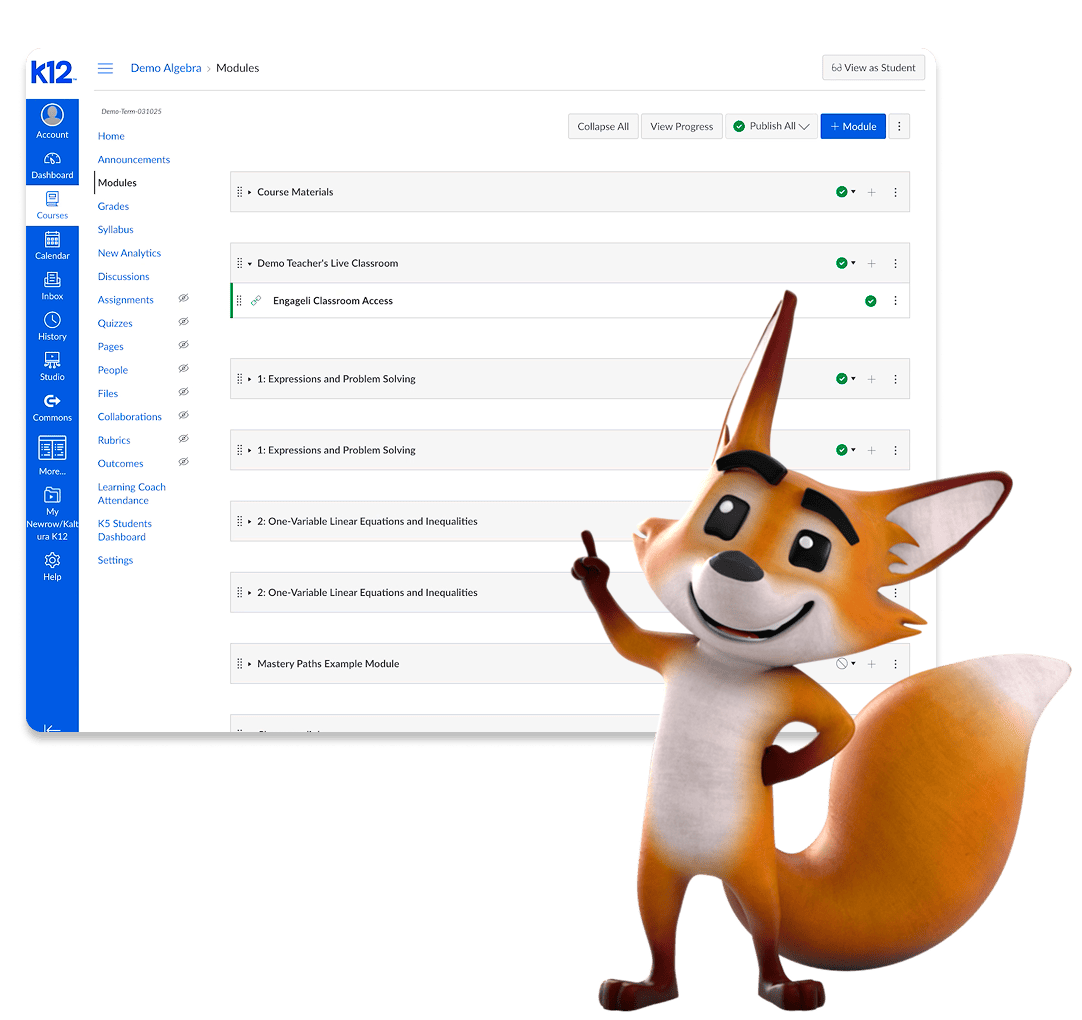
A cheerful cartoon fox points to a computer screen displaying a K12 education platform with course modules. The tone is educational and engaging.

The fastest way to check your enrollment status or view documentation is by logging into your enrollment portal.

The following chart outlines the various K12 Enrollment departments you can contact, depending on your specific situation, regarding enrollment status, admissions, billing, or existing issues.

Resource: Enrollment Contact List

Use the contact numbers below based on your enrollment need:

  • Public School Enrollment and Admissions: 866.968.7512
  • Private School Enrollment: 866.512.6463
  • Existing Private School Enrollment (refunds, cancellations, and incorrect materials): 877.431.9635
  • Existing Private School Enrollment Billing (credit card updates, payment arrangements): 866.254.1788

Click here for the enrollment team’s hours of operation.

If you’ve logged into your K12 School (OLS) account and don’t see your courses on your dashboard, it’s often due to enrollment timing, course publishing status, or the school’s initial schedule.

Resource: Where are my courses?

Here are the common scenarios explaining why your courses may not be visible:

Scenario #1: You see a blue “Failed to Log In” message

If your school start date hasn’t yet arrived, don’t worry—no action is needed. Simply log back in on your first day of school to see your courses.

Scenario #2: Your Dashboard is empty—If you log in and your Dashboard landing page has no courses listed, follow these steps to check for upcoming courses:

  • Go to the Courses tab in the Global Navigation menu.
  • Click All Courses.
  • Look for the Future Enrollments section. Any upcoming courses you’ve been assigned will appear here.

Scenario #3: Your Courses Are Not Published

These will be published once you need them. No action is required on your part at this time.

Scenario #4: “Week of Welcome” Schedule

If your schedule appears light on courses, this is not an error. Your school may start you off with onboarding and orientation, and your full class list will become available after this initial onboarding period.

Scenario #5: Welcome Site Landing Page

If you see the Welcome Site screen and your student’s school start date has not yet arrived, your courses will become active on your first day of school.

When attempting to join a live online class session, your student may encounter a message such as “Only staff members can join the class, waiting for opening,” which prevents access to the virtual classroom.

If this happens, please contact your teacher directly. The teacher will need to adjust the session settings.

Note: If your student joins too early (typically 5 to 15 minutes before the scheduled start time), they might see this message. To avoid this, exit the session and rejoin the class fewer than 4 minutes before class is scheduled to begin.

Resource: Engageli Staff Members

This article serves as your one-stop resource for everything you need to know about setting up and logging in to your Learning Coach or student K12 School (OLS) account.

Resource: K12 School Account Setup and Help Logging In

This guide covers:

  • Creating the Learning Coach Account
  • Creating the Student(s) Account
  • Resetting Your Password
  • Unlocking Your Account
  • Finding Your Username

Key Steps:

  • To create the Learning Coach account, click Create Your Account in the Welcome email. If you don’t receive the email, contact K12 Customer Care at 866.512.2273.
  • To Reset Your Password, go to learn0.K12.com, select Need Help Logging In?Forgot Password?, and check your email for the reset link.
  • To unlock your account, go to learn0.K12.com, select Need Help Logging In?Unlock Account, then check your email to unlock the account automatically.

Once your student is assigned courses, you can track your incoming shipments (including course materials and hardware, if applicable) right from your Learning Coach K12 School (OLS) account!

Resource: How To Track Your Course Materials and Hardware Shipments

How do I track my student’s shipments?

  • Log in to the K12 School (OLS) using your Learning Coach username and password.
  • Locate and click on the Resources navigation tab on the left.
  • Use the Course Shipments button to track your materials or the Hardware Shipments button to track computer delivery.

Tracking Course Material Shipments

  • You can filter your course shipments by time range or by student.
  • For physical materials, you can view the shipment status, ship date, and tracking number, once available.
  • Courses that display “No materials” use online-only resources.

The type of program you or your student is enrolled in determines the most appropriate support options available.

Resource: Who can help me?

For Technical Issues and Immediate Assistance: For general technical support and issues that require immediate attention, please contact K12 Customer Support via:

  • Request Support Online
  • Call toll-free 866.512.2273.

If you are experiencing accessibility issues, such as pages loading slowly or error messages, clearing your internet browsers cache and cookies is often the first step to resolving the problem.

Resource: Internet Browsers: Clear Cache and Cookies

Clearing Cache and Cookies on Google Chrome

  • Select the 3 dots in the top right corner → select Delete Browsing Data.
  • In the Time range drop-down, select All time.
  • Check all available boxes → select Delete data.
  • Close and reopen your browser to refresh the changes.

We understand how crucial an accurate schedule is to a smooth school experience. If you notice any discrepancies, missing courses, or incorrect information in your schedule within the K12 School (OLS), please don’t worry. This can often be resolved quickly by contacting the appropriate staff:

  • For immediate assistance, please reach out to your teacher or guidance counselor, as they can verify class details.
  • For widespread or persistent issues, please escalate the concern to your school administrator. They can investigate and resolve fundamental scheduling errors directly to get your daily calendar back on track.

Camera requirements vary by school and may depend on the class or activity. Families should refer to their school’s student handbook for details on local policies.

The K12 School (OLS) offers significant advantages over previous learning platforms (like the old OLS):

  • Modern System: It’s a modern platform trusted by many of the nation’s top schools and universities.
  • Simplicity and Connection: It simplifies daily learning with one connected system.
  • Stronger Security: It strengthens the security of student data.
  • Evolving Features: It provides a strong foundation with features that can be continually built upon as education evolves.

We understand the importance of timely communication. If you are not receiving a response from your teacher through their preferred method within the expected response time, please consider taking the following steps:

  • Review the Course Welcome/Syllabus: Confirm the teacher’s stated preferred contact method and response time policy.
  • Use a Secondary Channel: If your initial email or message remains unanswered, try the teacher’s secondary communication channel, such as using the Learning Coach’s messaging tool or sending a message through the school’s official student information system.
  • Contact School Administration: If you have attempted communication through both primary and secondary channels without success, please reach out to your school administrator for assistance in connecting with the teacher.

We want to assure families that no student will be academically penalized due to technical issues, system outages, or platform transition challenges encountered within the K12 School (OLS). Our priority is student success and fair evaluation.